
eSIM by local networks
Duration & Features
City
Multi-country

 English
Setup time: 3–5 minutes.
What you need to get started:
Once you have purchased a Vietnam eSIM, your provider will email you an eSIM profile that includes a QR code and a SM-DP+ Address and Activation Code.
The actual installation and activation is the same whether you’re heading to Hanoi, Da Nang, or Phu Quoc. Also, it works for eSIMs from any provider worldwide, not just Vietnam-specific ones.
This guide shows you how to activate an eSIM in Vietnam on iPhone, Samsung, and Google Pixel — including setup, activation, and how to fix the ‘no internet’ problem.”
💡 This guide is part of our Vietnam eSIM Complete Guide, covering setup, troubleshooting, and FAQs for travelers.
Most flagship phones released after 2018 support eSIM. Check the full list of eSIM-compatible devices to confirm your model.
A locked phone will reject eSIM profiles from foreign networks. If you bought your phone directly from a carrier (AT&T, Verizon, O2, etc.), check whether it’s been unlocked before you travel.
You need Internet connection to download the eSIM profile. Airport or hotel WiFi works fine -just make sure it’s available before you need data.
Each QR code is one-time use only.
Key distinction to understand: Installation and activation are two separate steps. Installation downloads the eSIM profile onto your device — you can do this at home before you fly. Activation starts the data plan — this usually happens once you arrive in Vietnam and connect to a local network.
No matter which phone you use, there are two methods:
For manual entry, you’ll need the SM-DP+ Address and Activation Code from your provider’s email. Copy these somewhere accessible before you begin.
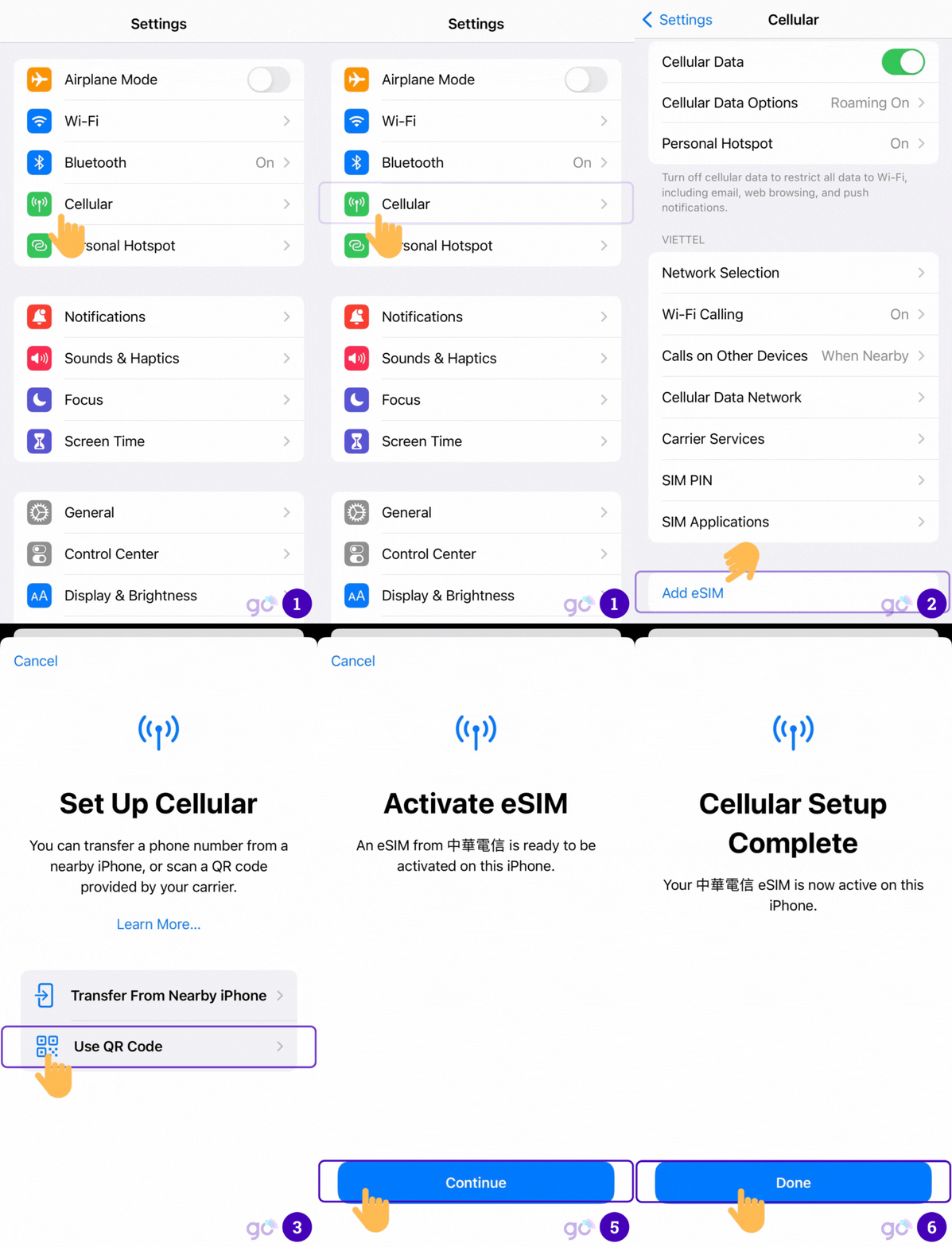
These steps work for iPhone XS and later models. Tested on iOS 16.
iOS version note:
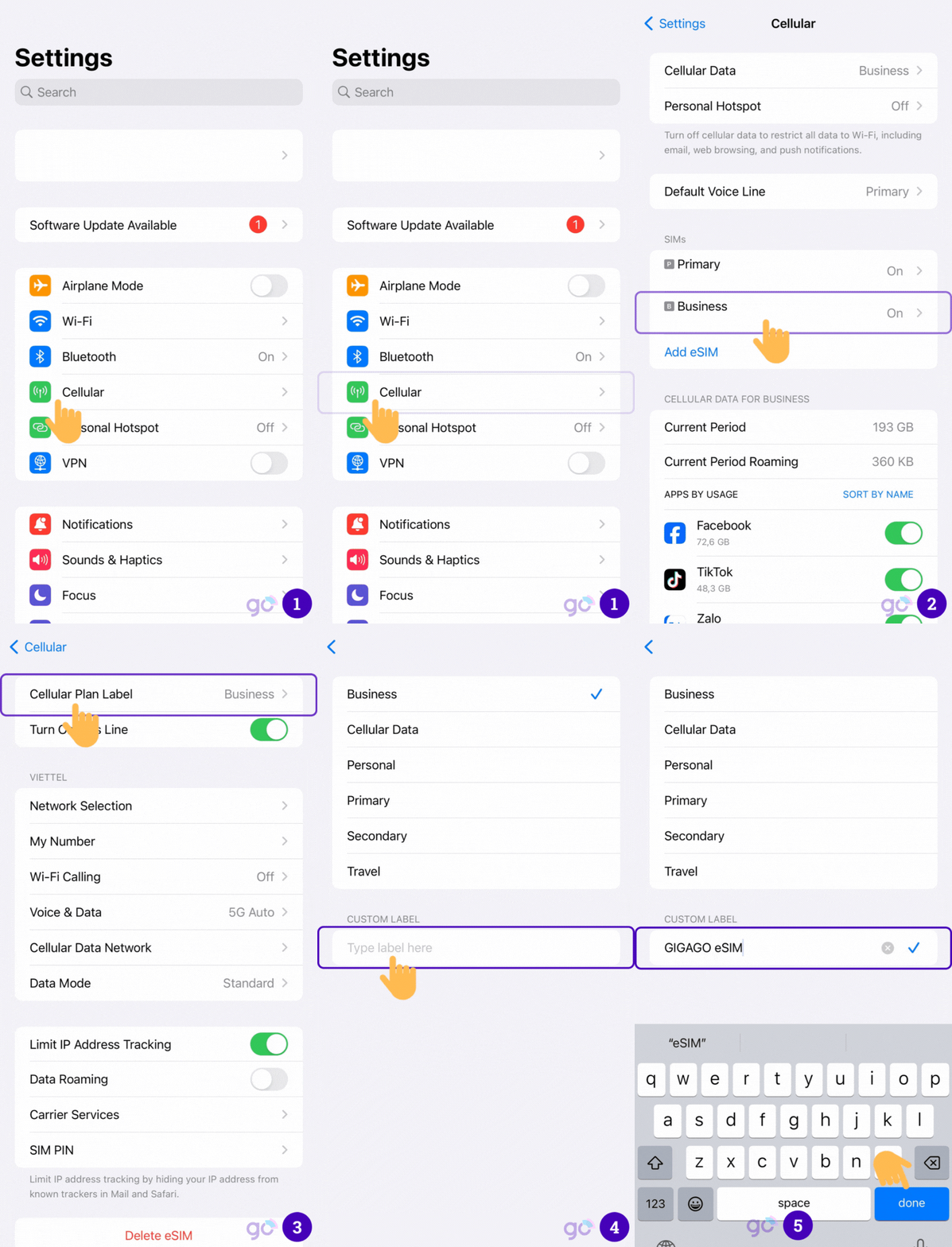
If you travel frequently, labeling keeps things organized:
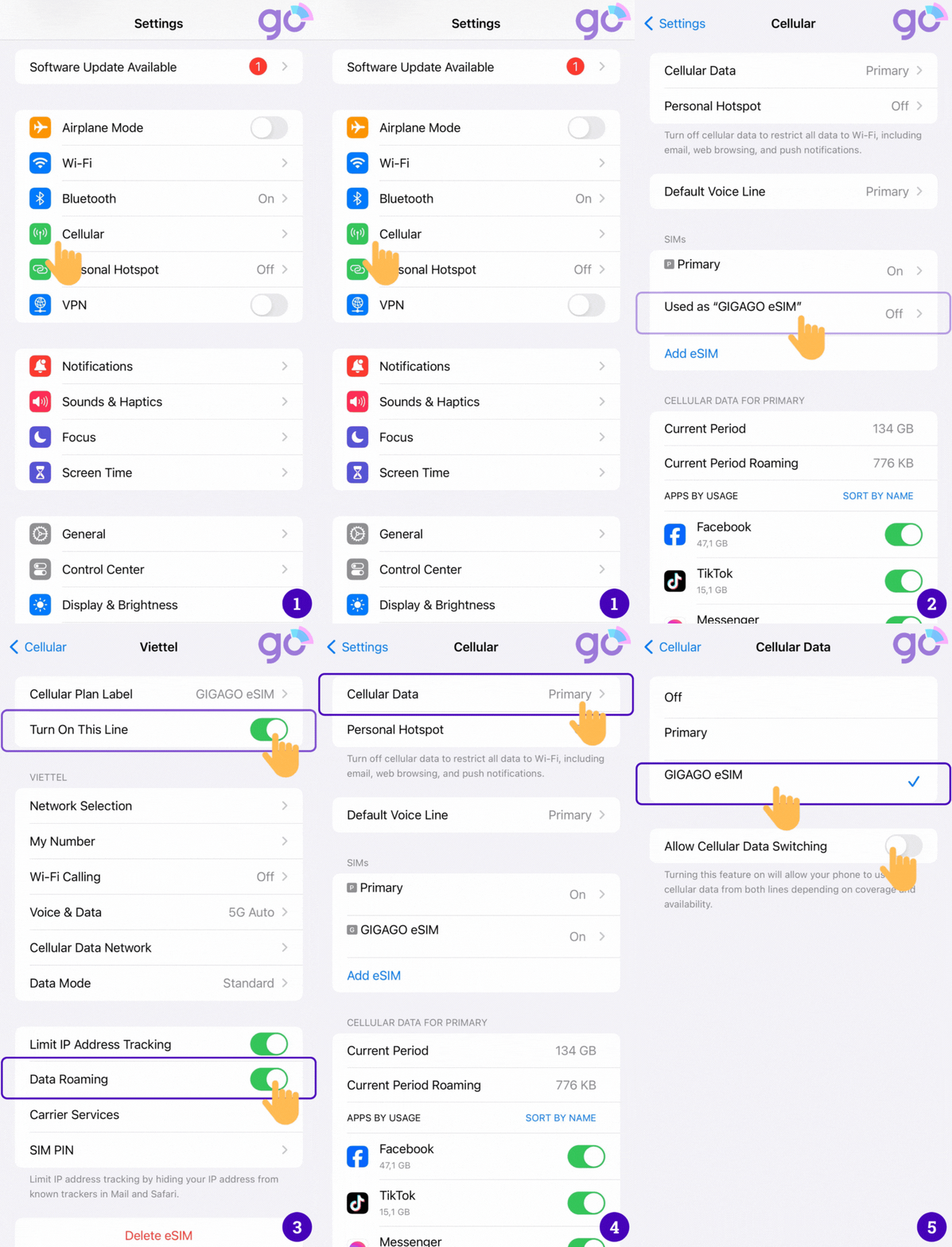
The issue is almost always the APN (Access Point Name). Fix it here:
→ If you still can’t fix your issues, check our comprehensive guide on most common Vietnam eSIM errors.
These steps are compatible with Samsung Galaxy S20 and later (most Samsung models with eSIM support). Menu labels vary by model and One UI version.
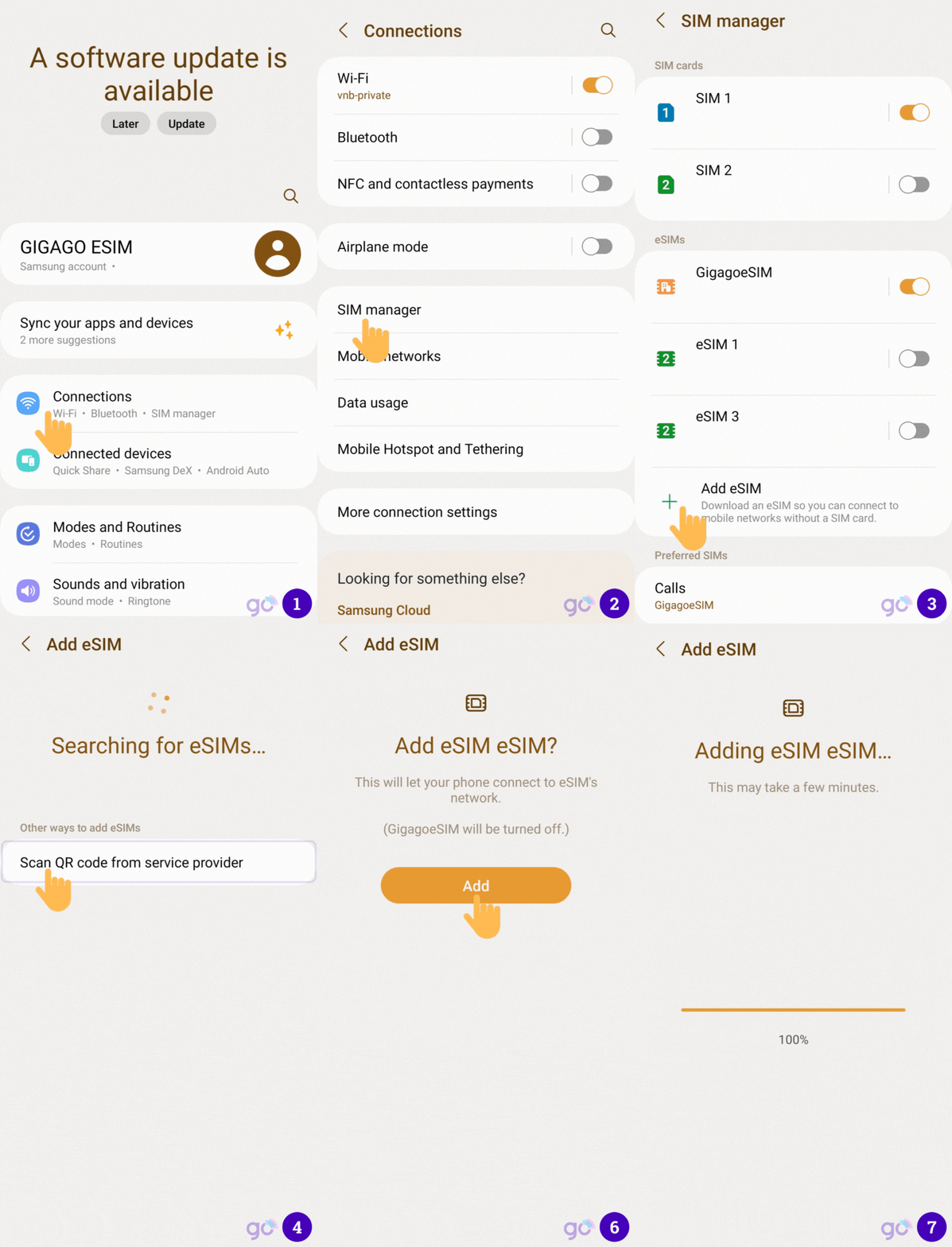
Note: On some Samsung models, after selecting “Add using QR code,” an Activation Code field appears on the scanning screen. If this happens, tap that field and enter the code — don’t try to scan again.
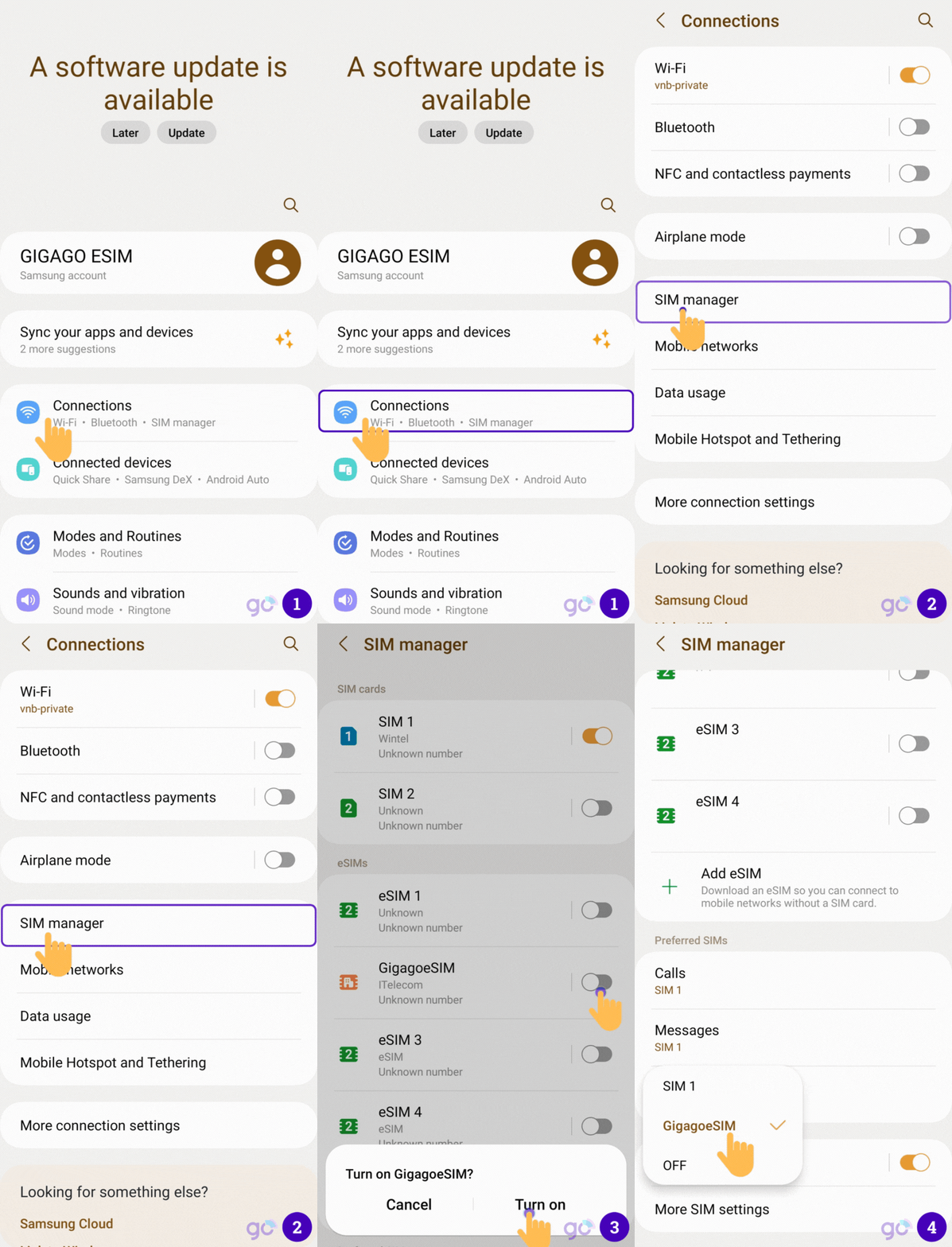
For Vietnamesim.com eSIMs: Switch to the eSIM phone number in Messages and send the activation SMS as instructed.
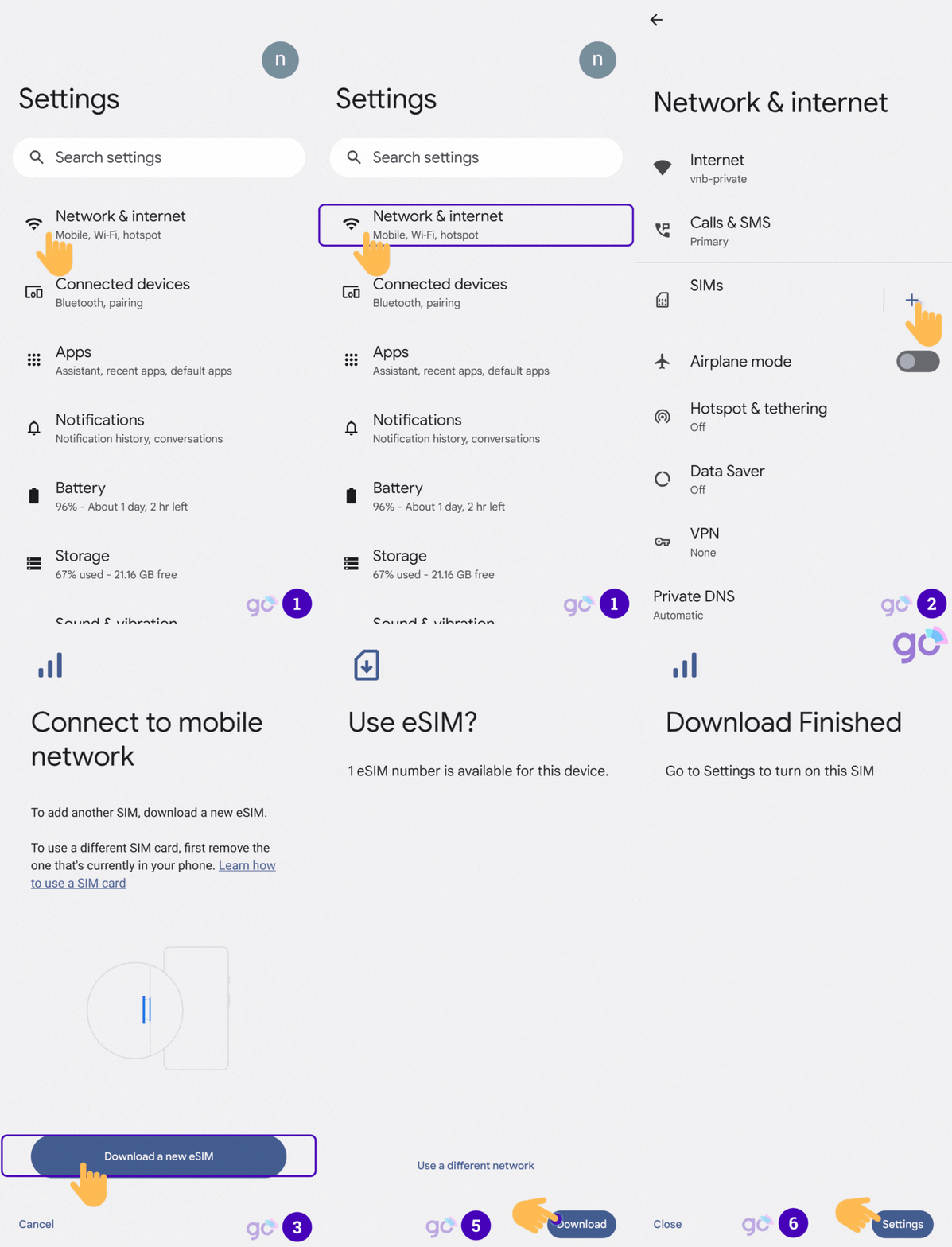
These step applies to Pixel 3 and later. Keep your Android version updated for the smoothest experience.
To rename your plan: Select the SIM after installation > tap the pencil icon (top right) to edit the label.
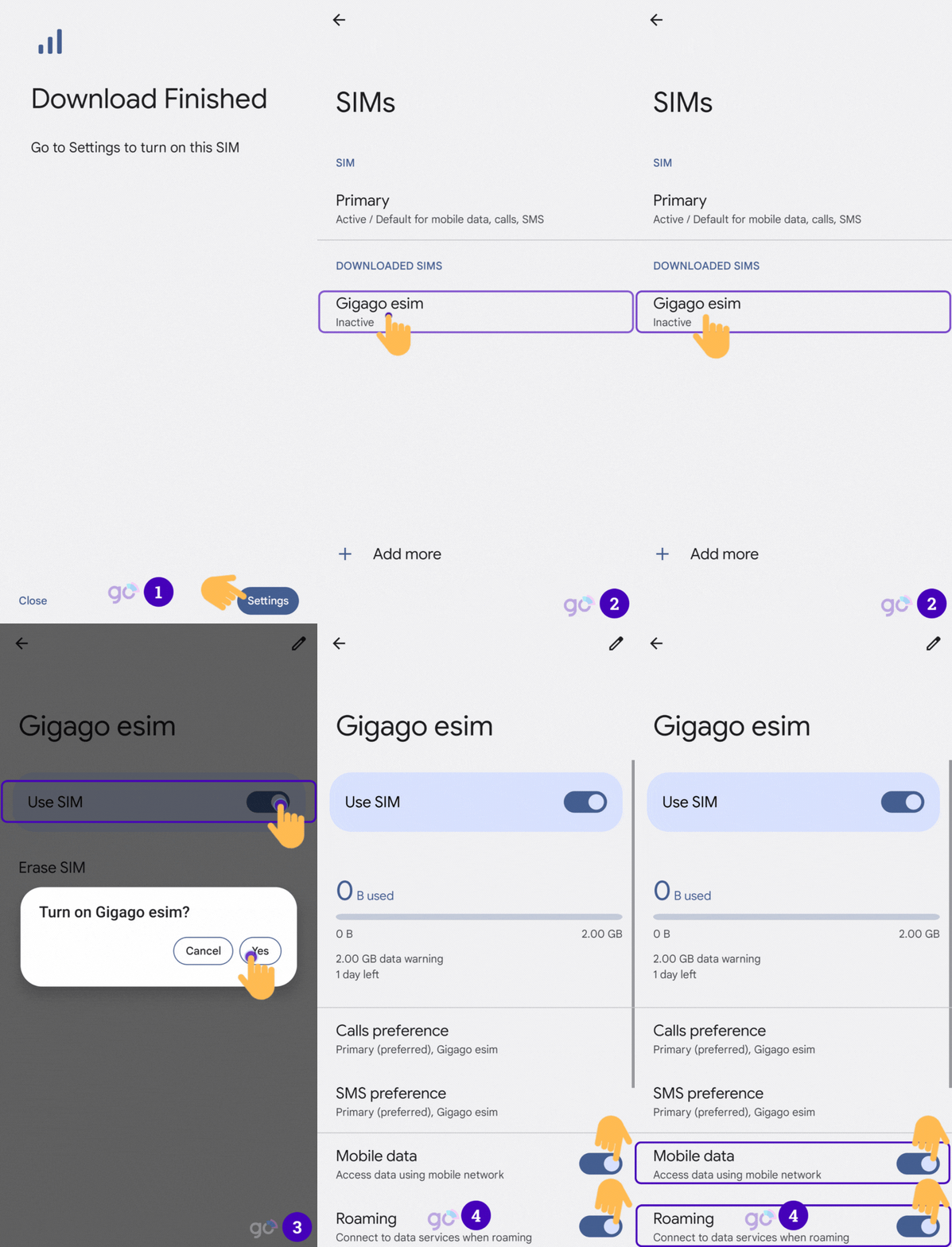
For Vietnamesim.com eSIMs: Go to Messages, switch to the eSIM phone number, and send the activation SMS as instructed.
| Step | When | Requires WiFi? |
|---|---|---|
| Install eSIM profile | Anytime before travel, but no more than 30 days after purchase (based on the QR code’s expiration policy veried by eSIM provider.) | Yes |
| Activate data plan | On arrival in Vietnam | No (uses local network) |
⚠️ A note for Vietnamesim.com customers: For most eSIM plans by us, follow the standard steps below. However, if you purchased a MobiFone Official eSIM or Local eSIM (MobiFone MVNO), you will need to complete a few extra steps before your connection works in Vietnam. We will sent you a separate quick guide in your email – it takes only 30 seconds to complete.
Yes — and you should. Installing at home means one less thing to sort out at the airport. Just don’t activate the data plan until you land.
Yes, you need an internet connection to install your eSIM, being it WiFi or mobile data from your current SIM card. Once installed, you can activate the eSIM when you arrive in Vietnam. We recommend setting up your Vietnam eSIM one day before departure while your device gets connected to your home WiFi.
Yes. Dual SIM (physical SIM + eSIM) works on most modern phones. You can keep your home number for calls/texts and route all data through the Vietnam eSIM.
Make sure there’s enough light and the QR code isn’t blurry or obscured. If it still fails, use the manual entry method (SM-DP+ Address + Activation Code). If the code has already been used once, contact your eSIM provider.
If you have a 5G-capable phone and your Vietnam eSIM is a data-only plan, you may need to manually switch to 4G/LTE. Go to your network settings and change the preferred network type if you experience connectivity issues.
Yes, most eSIM plans support hotspot/tethering features. For Vietnamesim.com’s plan, all of them support tethering (except for the Unlimited plans covered by Wintel).
If your eSIM does not work, take these steps: restart your device, ensure data roaming is turned on, check if your eSIM line is turned on or not, and verify that you are in an area with network signals. Also make sure that your plan is valid / hasn’t expired. If the issue persist, contact your eSIM provider’s customer support.
Most eSIM profiles can only be installed once. Deleting the profile means you lose it permanently. Only delete if your provider has confirmed they can reissue the same eSIM or a replacement.
We have introduced detailed guides on eSIM installation and activation on iPhone, Samsung and Google Pixel. If you have questions, feel free to contact us via chat or Hotline/Whatsapp: +1 657-571-1199 or email [email protected].
After learning this guide, you can visit our eSIM store to buy Vietnam eSIM with instant QR code delivery.
